

Anyone
Turn on two-factor sign-in
Add a 6-digit code from your phone to your password, so a stolen password alone can't get in.
3 min
- 1
Open your account
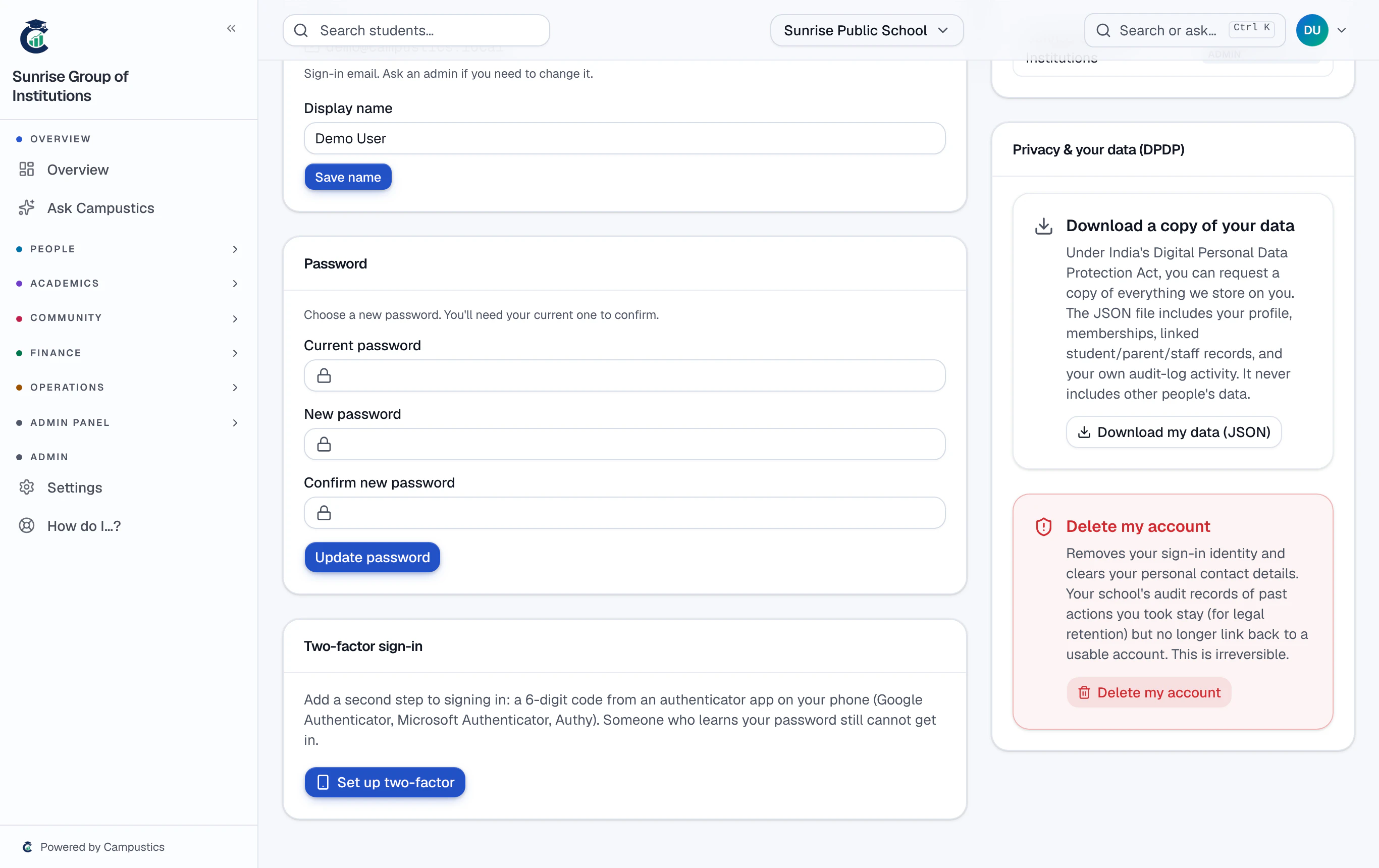
Click your name in the top-right → Account. Under Two-factor sign-in, click Set up two-factor.
- 2
Scan the QR code
Scan it with an authenticator app on your phone — Google Authenticator, Microsoft Authenticator or Authy. Type the 6-digit code the app shows and click Turn on.
- 3
Save your backup codes
You get ten backup codes. Copy or download them now — they are shown only once. Each one signs you in once if you lose your phone.
You can make a fresh set of backup codes later from the same card.
- 4
Signing in from now on
After your password, Campustics asks for the code from the app — on the website and in the mobile app. The code changes every 30 seconds.
Lost your phone and your backup codes? Your school administrator can reset two-factor for you from Settings → Team.