

Admin
Let parents sign in with their mobile number
- 1
How parents sign in
In the Campustics mobile app, the parent taps Sign in with mobile number, types the number your school has on their parent record, and enters the 6-digit code that arrives by SMS. Parents you have given a login can always do this.
- 2
Let new parents activate the app
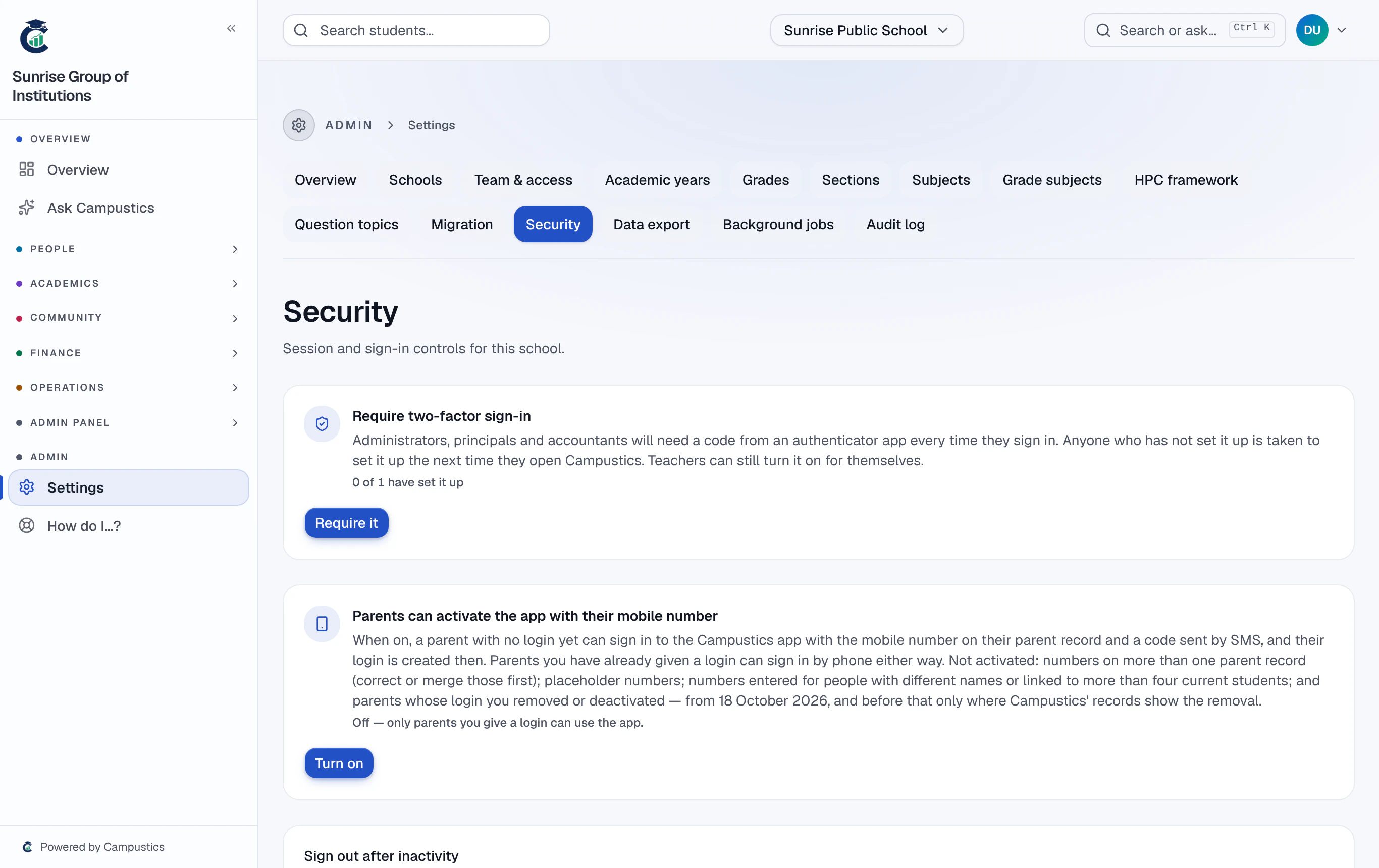
To let parents with no login yet activate the app this way, turn on Settings → Security → Parents can activate the app with their mobile number. Each activation is in the audit log, and you are notified.
Check first that the numbers are the parents' own mobiles — not the office number, a placeholder like 9999999999, or another family's. From then on the number is that parent's way in.
- 3
When the app says 'ask your school'
Phone sign-in is refused when the same number is on more than one parent record, a record reaches more than four current students, or the number was entered for someone with a different name. Correct the records; for a shared-number mark, check the record and click Checked — allow phone sign-in.
Codes reach every parent only once Campustics' SMS account has its OTP route switched on — ask your Campustics contact before announcing phone sign-in.